Typing accented letters on a Chromebook or in Google Docs is straightforward once you know where the tools are. For an occasional accent, use the Chromebook accent menu. If you type accents regularly, switch to the English (US) with International keyboard. Google Docs also has a built-in Special characters tool.
Quick answer
- Fastest for one letter: press and hold the letter, then choose the accented version from the Chromebook accent menu.
- Best for regular typing: use the US International keyboard.
- Inside Google Docs: go to Insert → Symbols → Special characters.
1. Use the Chromebook accent menu
ChromeOS has a built-in accent menu, so you may not need to change your keyboard layout.
- Select the time in the lower-right corner, then open Settings.
- Go to Device → Keyboard → Change input settings.
- Next to the English (US) keyboard, select More and turn on Show accent marks and special characters.
- In a text field, press and hold a letter such as
a. When the accent menu appears, click the character you want or use the number shown beneath it.
Accents are not available for every character. If the menu does not appear, check that the setting is enabled for your current keyboard. Google’s Chromebook keyboard guide has the latest ChromeOS instructions.
2. Use the US International keyboard
The US International layout is useful when you type in Spanish, French, Portuguese, German, or other languages often.
- Select the time, then open Settings.
- Go to Device → Keyboard → Change input settings.
- Under Input methods, select Add and enable English (US) with International keyboard.
- Use the language code on the shelf to switch layouts. You can also press Ctrl + Space to return to the previous keyboard.
Type the accent key first, then the letter:
- Acute accent:
'thena→ á - Grave accent:
`thene→ è - Umlaut or diaeresis: Shift +
'thenu→ ü - Tilde: Shift +
`thenn→ ñ - Circumflex: Shift + 6 then
o→ ô
To type the accent mark itself—for example, an apostrophe—press the accent key followed by Space. For more combinations and troubleshooting, see the complete US International keyboard guide.
Takes 10 seconds. No spam.
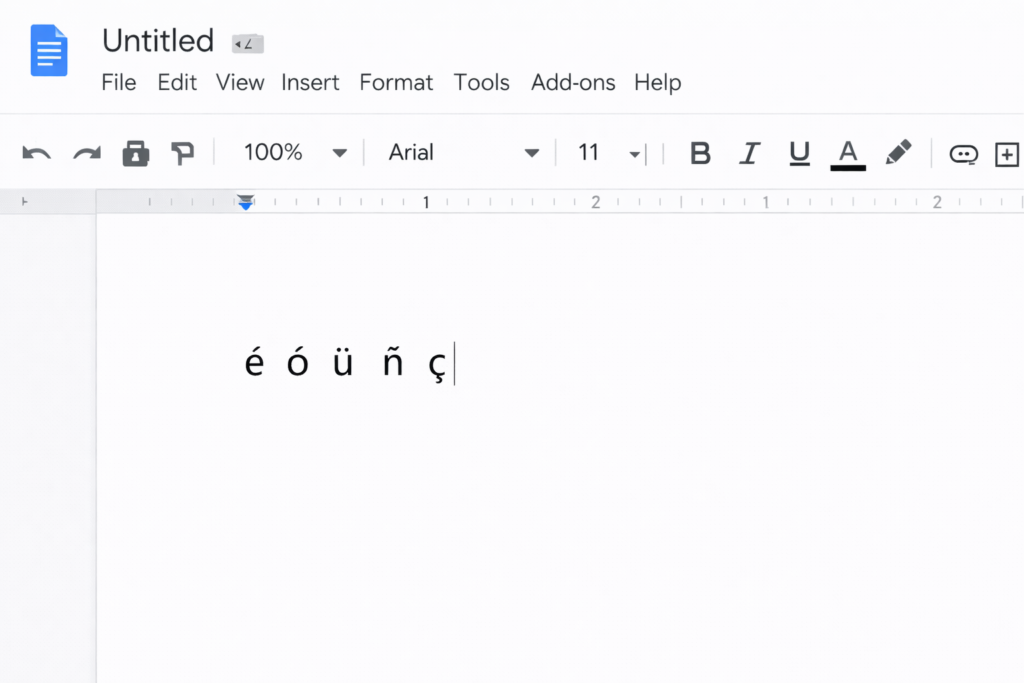
3. Type accents in Google Docs
Google Docs gives you two dependable options: use your Chromebook keyboard method, or insert a character from the Docs menu.
Insert a special character
- In your document, go to Insert → Symbols → Special characters.
- Search for a description such as “a with acute” or “n with tilde.” You can also choose a category or search by Unicode value.
- Select the character to insert it at the cursor.
Draw the character
In the same Special characters window, draw the accented letter in the box. Google Docs will suggest matching characters that you can select.
Use your Chromebook keyboard
The Chromebook accent menu and US International keyboard work inside Google Docs, too. If you use them across several websites and apps, they are usually faster than opening the Special characters window each time. See Google’s Docs special-character instructions for the current menu options.
4. Optional Chrome extensions
Most people can use the built-in Chromebook and Google Docs methods. If you prefer a toolbar or need additional language input options, these current Chrome Web Store extensions may help:
- Easy Accent Marks provides a panel for copying and inserting accented characters.
- Google Input Tools provides virtual keyboards, input methods, transliteration, and handwriting tools for many languages.
Extensions work inside the browser and may not work in every field. Review an extension’s permissions and privacy information before installing it.
5. Quick reference table
| Character | Chromebook accent menu | US International | Google Docs |
|---|---|---|---|
| á | Hold a, choose á | ' then a | Search “a with acute” |
| é | Hold e, choose é | ' then e | Search “e with acute” |
| í | Hold i, choose í | ' then i | Search “i with acute” |
| ó | Hold o, choose ó | ' then o | Search “o with acute” |
| ú | Hold u, choose ú | ' then u | Search “u with acute” |
| ñ | Hold n, choose ñ | Shift + ` then n | Search “n with tilde” |
Need one character right now? Use the Accent Character Finder to copy and paste it.
Related typing guides
- Learn specifically how to type ñ on a Chromebook.
- Type accents on Windows and Mac.
- Type accents on iPhone and iPad.
6. Troubleshooting
- The accent menu does not appear: confirm that “Show accent marks and special characters” is enabled for the keyboard you are using.
- Punctuation turns into an accent: on the US International layout, press the punctuation key and then Space, or switch back to the standard US keyboard.
- The wrong keyboard is active: select the language code on the shelf, or press Ctrl + Space to switch back.
For more fixes, see Keyboard Not Typing Accents? Here’s How to Fix It.
Final tip
Bookmark this page in Chrome so the shortcuts are easy to find. The Chromebook keyboard methods work in Google Docs and in most other web apps where you can type.