Looking for a quick reference for typing accent marks on Windows? This printable Alt codes chart gives you instant access to the most commonly used accented characters. Print it out and keep it by your computer for easy reference whenever you need to type é, á, ñ, ü, or another common Western European accented character.
Perfect for students, professionals, writers—anyone who frequently types in multiple languages on Windows.
How to Use This Chart
Using Alt codes is simple:
- Hold down the Alt key
- Type the complete four-digit code, including the leading zero, on the numeric keypad
- Release the Alt key
- The accented character appears!
Important: Traditional Alt codes require the numeric keypad, not the numbers at the top of your keyboard. Some laptops have an embedded numeric keypad, but its activation method varies by manufacturer. If your computer has no numeric keypad, use Character Map, the Windows symbols panel, the US International keyboard, or copy and paste.
Essential Accented Vowels
These are commonly used Western European accented vowels:
| Character | Alt Code | Character | Alt Code |
|---|---|---|---|
| á | Alt + 0225 | Á | Alt + 0193 |
| é | Alt + 0233 | É | Alt + 0201 |
| í | Alt + 0237 | Í | Alt + 0205 |
| ó | Alt + 0243 | Ó | Alt + 0211 |
| ú | Alt + 0250 | Ú | Alt + 0218 |
Spanish Characters
Essential characters for typing in Spanish:
| Character | Alt Code | Description |
|---|---|---|
| ñ | Alt + 0241 | n with tilde |
| Ñ | Alt + 0209 | N with tilde |
| ü | Alt + 0252 | u with diaeresis |
| Ü | Alt + 0220 | U with diaeresis |
| ¿ | Alt + 0191 | inverted question mark |
| ¡ | Alt + 0161 | inverted exclamation mark |
French Accents
Common French accented characters:
Grave Accents (`)
| Character | Alt Code | Character | Alt Code |
|---|---|---|---|
| à | Alt + 0224 | À | Alt + 0192 |
| è | Alt + 0232 | È | Alt + 0200 |
| ù | Alt + 0249 | Ù | Alt + 0217 |
Circumflex (^)
| Character | Alt Code | Character | Alt Code |
|---|---|---|---|
| â | Alt + 0226 | Â | Alt + 0194 |
| ê | Alt + 0234 | Ê | Alt + 0202 |
| î | Alt + 0238 | Î | Alt + 0206 |
| ô | Alt + 0244 | Ô | Alt + 0212 |
| û | Alt + 0251 | Û | Alt + 0219 |
Other French Characters
| Character | Alt Code | Description |
|---|---|---|
| ç | Alt + 0231 | c with cedilla |
| Ç | Alt + 0199 | C with cedilla |
| ë | Alt + 0235 | e with diaeresis (French tréma) |
| ï | Alt + 0239 | i with diaeresis (French tréma) |
| æ | Alt + 0230 | ae ligature |
| Æ | Alt + 0198 | uppercase AE ligature |
| œ | Alt + 0156 | oe ligature |
| Π| Alt + 0140 | uppercase OE ligature |
German Characters
Essential German umlauts and Eszett:
| Character | Alt Code | Description |
|---|---|---|
| ä | Alt + 0228 | a with umlaut |
| ö | Alt + 0246 | o with umlaut |
| ü | Alt + 0252 | u with umlaut |
| Ä | Alt + 0196 | A with umlaut |
| Ö | Alt + 0214 | O with umlaut |
| Ü | Alt + 0220 | U with umlaut |
| ß | Alt + 0223 | sharp s (eszett) |
German also has the optional uppercase form ẞ. It does not have a traditional four-digit Windows-1252 Alt code; in Microsoft Word, type 1E9E and then press Alt + X.
Portuguese and Italian Accents
Additional Portuguese Characters
Portuguese also uses accented vowels and ç whose codes appear in the earlier sections. These tilde forms are particularly important:
| Character | Alt Code | Character | Alt Code |
|---|---|---|---|
| ã | Alt + 0227 | Ã | Alt + 0195 |
| õ | Alt + 0245 | Õ | Alt + 0213 |
Common Italian Accented Vowels
| Character | Alt Code | Character | Alt Code |
|---|---|---|---|
| à | Alt + 0224 | À | Alt + 0192 |
| è | Alt + 0232 | È | Alt + 0200 |
| é | Alt + 0233 | É | Alt + 0201 |
| ì | Alt + 0236 | Ì | Alt + 0204 |
| ò | Alt + 0242 | Ò | Alt + 0210 |
| ó | Alt + 0243 | Ó | Alt + 0211 |
| ù | Alt + 0249 | Ù | Alt + 0217 |
Takes 10 seconds. No spam.
Common Symbols & Punctuation
Useful symbols you might need:
| Character | Alt Code | Description |
|---|---|---|
| © | Alt + 0169 | copyright symbol |
| ® | Alt + 0174 | registered trademark |
| ™ | Alt + 0153 | trademark symbol |
| € | Alt + 0128 | euro sign |
| £ | Alt + 0163 | pound sterling |
| ° | Alt + 0176 | degree symbol |
| ± | Alt + 0177 | plus-minus sign |
| ÷ | Alt + 0247 | division sign |
| × | Alt + 0215 | multiplication sign |
| – | Alt + 0150 | en dash |
| — | Alt + 0151 | em dash |
| « | Alt + 0171 | left guillemet |
| » | Alt + 0187 | right guillemet |
| • | Alt + 0149 | bullet point |
Quick Tips for Success
Number Pad Required:
Alt codes only work with the numeric keypad on the right side of your keyboard. The numbers above the letter keys won’t work.
Laptop Users:
If your laptop doesn’t have a dedicated number pad, look for numbers printed on certain letter keys (usually J, K, L, U, I, O). Press Fn + Alt, then type the code using these keys.
Three vs. Four Digits:
Some codes use three digits (like Alt + 130), others use four (like Alt + 0193). Both work – just type exactly what’s shown.
Num Lock Must Be On:
Make sure Num Lock is enabled on your keyboard for Alt codes to work.
Alternative Method:
If Alt codes aren’t working, try the US International Keyboard layout instead. See our complete guide for setup instructions.
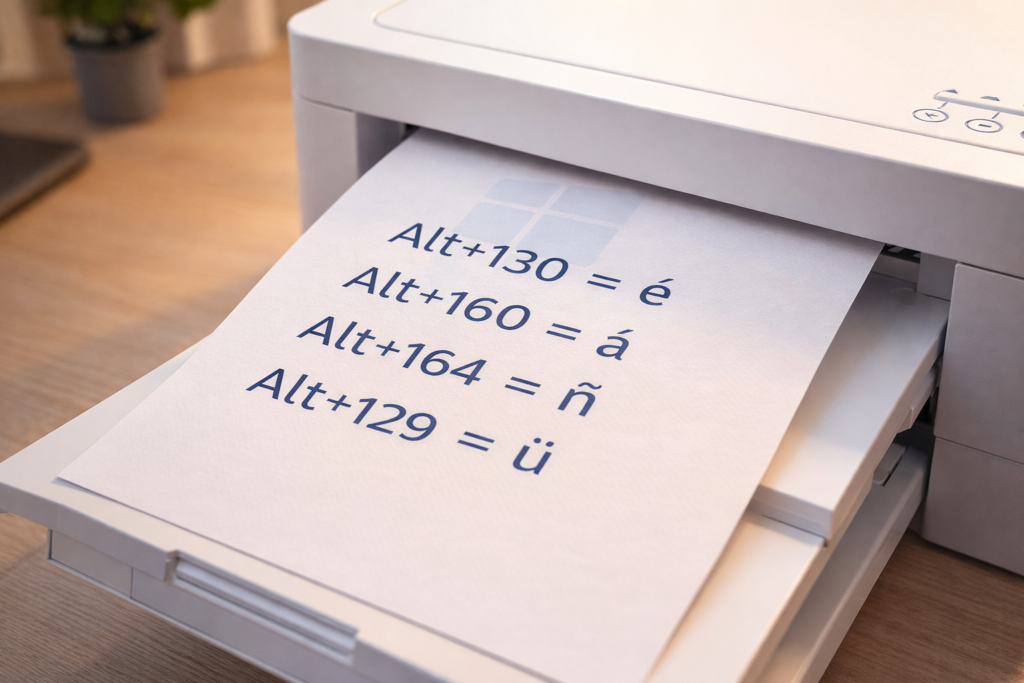
Printing This Chart
To print this reference chart:
- Press Ctrl + P (Windows) or Cmd + P (Mac)
- Adjust print settings:
- Choose landscape orientation for better formatting
- Remove headers and footers for a cleaner look
- Consider printing in color for easier reading
- Click Print
Pro tip: Laminate your printed chart or slip it into a clear sheet protector to keep it clean and durable.
When Alt Codes Don’t Work
If Alt codes aren’t working for you:
Check Num Lock:
Press the Num Lock key to enable your number pad.
Try Four-Digit Codes:
Use the corresponding four-digit code shown in this chart; do not simply add a zero to a legacy three-digit code.
Verify Number Pad:
Make sure you’re using the number pad, not the top row numbers.
Enable Fn Key:
Use an Fn shortcut only if your laptop has an embedded numeric keypad, and consult the manufacturer’s instructions for the correct key combination.
Consider Alternatives:
If Alt codes consistently fail, switch to the US International Keyboard or enable the specific language keyboard you need.
For detailed troubleshooting and alternative methods, see our complete Alt Codes guide.
Beyond Alt Codes
While Alt codes work great on Windows, other platforms have their own methods:
Mac Users:
Use Option key combinations. See our Mac keyboard shortcuts guide.
iPhone/iPad:
Press and hold letters to access accents. See our iOS guide.
Android:
Press and hold letters for accent options. See our Android guide.
Chromebook:
Enable US International keyboard. See our Chromebook guide.
For more detailed instructions and additional methods, see our complete Windows Alt Codes guide, Special Characters on Windows guide, or our ASCII Codes reference.
Language-Specific Guides
Need more detailed information for a specific language?
- Spanish Accents Complete Guide
- French Accents Complete Guide
- German Accents Complete Guide
- Portuguese Accents Complete Guide
- Italian Accents Complete Guide
Save This Chart
Bookmark this page for instant access whenever you need to look up an Alt code. Having this reference readily available saves time and ensures you’re always typing accents correctly.
Share with colleagues who frequently type in multiple languages. Anyone who uses a compatible Windows application and numeric keypad may find this quick reference useful.
Frequently Asked Questions
Can I use Alt codes in any Windows program?
Traditional Alt codes work in many Windows applications, including Word and common browsers, but support can vary by program and text field.
Do Alt codes work on Mac?
Traditional Windows numeric Alt codes do not work in macOS. Mac users should use Option-key combinations, press and hold, or Character Viewer instead.
Why doesn’t my laptop have a number pad?
Many laptops omit the number pad to save space. Some models include an embedded numeric keypad, but its activation shortcut varies by manufacturer. Other laptops require an alternative input method.
Are there Alt codes for all special characters?
The traditional four-digit system covers a limited set of Western European characters and symbols. For other Unicode characters, use Character Map, a language keyboard, copy and paste, or an application-specific Unicode method.
Will this work on Windows 11?
Traditional Alt codes continue to work in Windows 11 when entered through a numeric keypad with Num Lock enabled, although support can vary by application.
Conclusion
Keep this Alt codes quick reference chart handy for fast, accurate typing of accented characters on Windows. Whether you’re writing in Spanish, French, German, Portuguese, Italian, or just need an occasional accented character, this chart provides a practical starting point.
Print or bookmark it if you would like to keep these commonly used codes within easy reach.

Need more detailed instructions? Check out our complete Windows Alt Codes guide for comprehensive tutorials, troubleshooting tips, and alternative methods.